Guide · Published September 2026
Comparing two text files used to mean installing something. It does not any more — a browser-based diff handles the common cases (two drafts, two config versions, two exports) without software, an account, or uploading your content anywhere.
Pick the right kind of comparison first
There are two fundamentally different ways to compare two text files, and picking the wrong one produces confusing output:
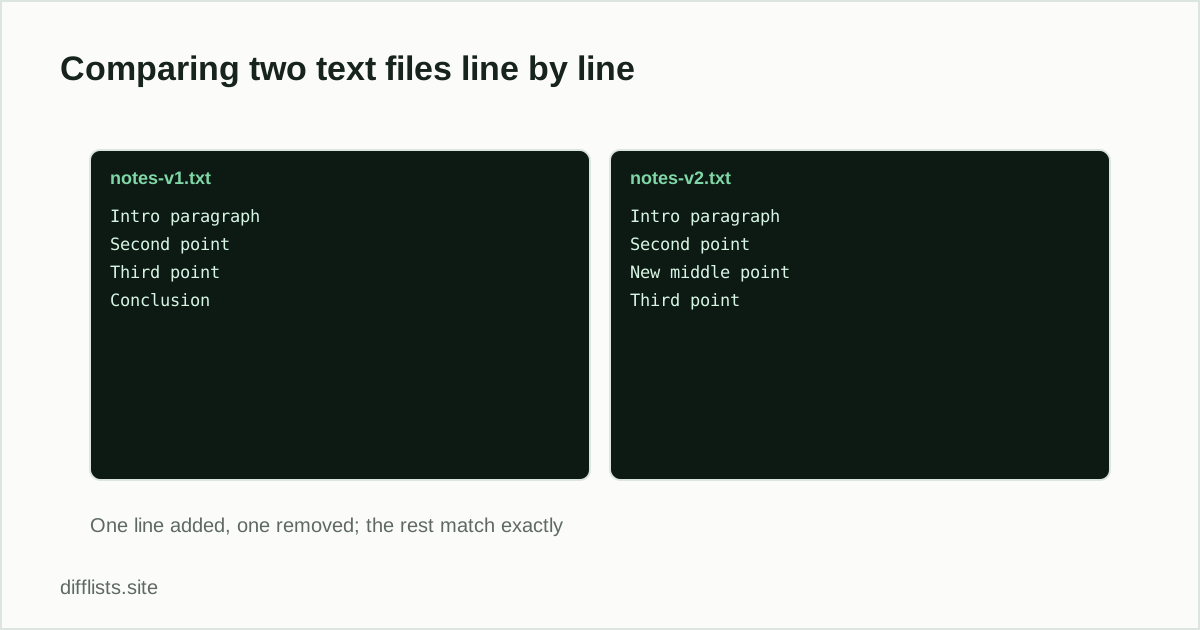
- Sequence diff (line by line). Respects order. Shows which lines were inserted and deleted between version one and version two — the same longest-common-subsequence approach used by command-line diff tools. This is what you want for drafts, configs, scripts, and anything where line position carries meaning.
- Set comparison. Ignores order. Tells you which values exist in one file but not the other. This is what you want for exported lists of IDs, emails or SKUs, where a re-sorted export is not a meaningful change.
The quick test: if re-sorting one file would count as “no real change,” you want a set comparison — use the list comparison tool. If re-sorting would be a big deal, you want the text diff.
Reading the diff output
Each line in the result carries a marker. A line prefixed + exists only in the second file (added). A line prefixed − exists only in the first (removed). An unmarked line is identical in both. A single edited line — one word changed in a sentence — appears as a removal immediately followed by an addition, because a line-based diff treats it as one line replaced by a different one rather than a partial edit.
The three things that create false differences
- Line endings. A file saved on Windows ends lines with CRLF; one saved on macOS or Linux uses LF. A diff that compares exactly will call every single line different. Normalize line endings before comparing if the two files came from different machines.
- Trailing whitespace. Invisible on screen, significant to a diff. If the output looks noisier than the actual edits justify, this is usually why.
- Line wrapping. Text copied from a word processor or a web page often carries hard line breaks at different positions than the same text from another source. Reformat both to consistent breaks — one sentence per line works well — before diffing prose.
If two lines look byte-identical and still register as different, the cause is often an invisible character. Run the text through the invisible character detector and check for zero-width or non-breaking spaces.
Comparing structured files
A line diff is format-agnostic, which is both its strength and its limit. For CSV exports, a key-column set comparison usually answers the real question better — see comparing two CSV files. For JSON, key reordering and whitespace changes produce huge diffs for semantically identical files, so normalize before diffing JSON.
Nothing leaves your browser
The comparison runs entirely in your browser tab. That matters more than it sounds for text files specifically, because the things people most often need to diff — draft contracts, config files with hostnames in them, unpublished copy — are exactly the things you would rather not paste into a random server-side tool.
When to reach for the command line instead
A browser diff is right for one-off comparisons you can paste. For files in the tens of thousands of lines, files you need to diff repeatedly as part of a build, or binary formats, use diffon the command line or your editor’s built-in compare. See comparing two files in Notepad++ for the desktop-editor route.
Diff two text files right now.
Open the text diff toolFrequently asked questions
How do I compare two text files without installing software?
Paste both versions into a browser-based diff tool. Everything runs locally in the browser tab, so there's nothing to install and nothing gets uploaded.
What's the difference between a text diff and a list comparison?
A text diff tracks line position and order, showing insertions and deletions in sequence. A list comparison ignores order entirely and only asks whether each value exists in each list.
Why does my diff show every line as changed?
Usually differing line endings (Windows CRLF vs Unix LF) or trailing whitespace. Normalize line endings in both files before comparing.
Can I compare files larger than a few thousand lines?
The line diff comfortably handles a few thousand lines per side. For much larger files, compare the relevant section rather than the whole file, or use a command-line diff.