Guide · Published September 2026
Notepad++ is the default text editor on a lot of Windows machines, and the first thing people discover when they try to diff two files in it is that the feature is not there. File comparison lives in the Compare plugin, and a stock install does not include it.
Installing the Compare plugin
- Open Plugins → Plugins Admin.
- Search the list for Compare and tick its checkbox.
- Click Install. Notepad++ closes and reopens to finish installing.
On older versions the menu is called Plugin Manager rather than Plugins Admin, and on some managed corporate installs the plugin manager is disabled entirely — if it is, the browser route below is the practical workaround. The plugin is also 64-bit/32-bit specific, so if Notepad++ was reinstalled in the other architecture the Compare entry can vanish from the Plugins menu and need reinstalling from Plugins Admin a second time.
Running the comparison
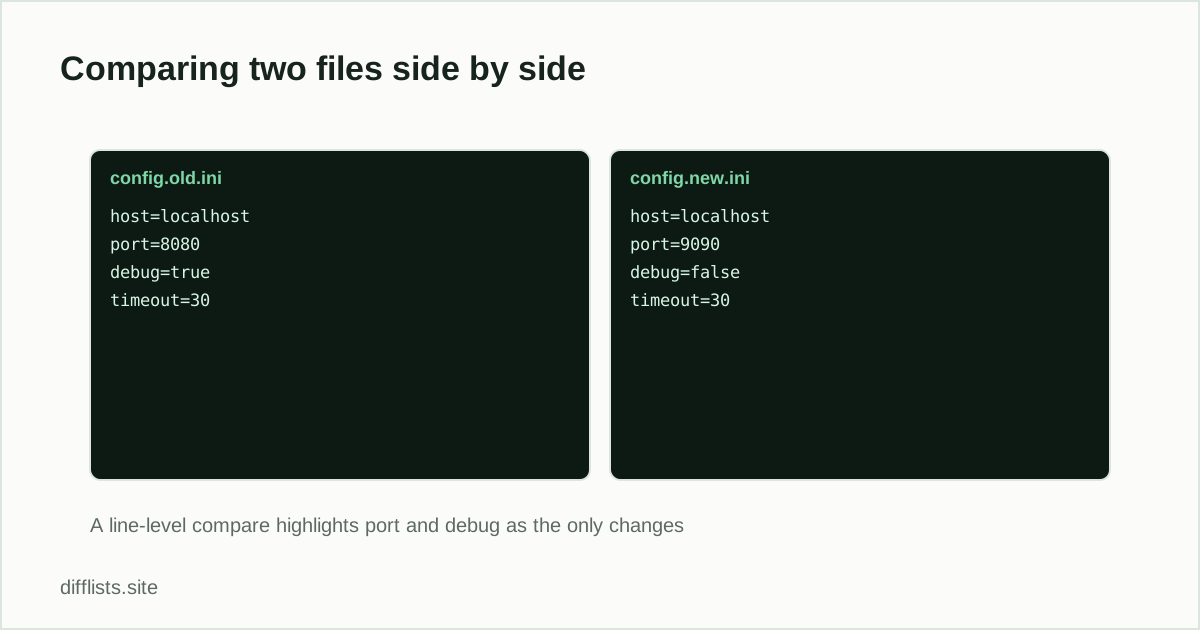
Open both files as tabs in the same Notepad++ window, then choose Plugins → Compare → Compare, or press Alt+D. The window splits into two panes, scroll-locked together, with differences colour-coded: added lines in one colour, removed in another, changed lines marked in both panes. Plugins → Compare → Clear Results (or Ctrl+Alt+D) closes the comparison view.
The plugin needs exactly two files to work with. If the Compare command is greyed out, that is nearly always the reason — one tab open, or several with no clear pair.
Making the output readable
Two settings under Plugins → Compare → Settings dramatically reduce noise on real files. Ignore spaces stops indentation-only changes from dominating the result, which matters if the two files were edited in different editors. And detecting moved lines separately keeps a block that simply moved from showing as a large deletion plus a large insertion.
The line-ending trap
If a comparison marks every line as different, the two files almost certainly have different line endings — one saved with Windows CRLF, the other with Unix LF. Notepad++ shows the current file’s ending in the status bar, and Edit → EOL Conversion converts one to match the other. Do that before concluding the files have nothing in common.
When a browser diff is the better option
The plugin is the right tool for files on your machine when you already work in Notepad++. It is the wrong tool in three situations: you are on a machine where you cannot install plugins, you are not on Windows at all, or you just need a quick one-off comparison of text you already have in the clipboard. In those cases paste both versions into the browser text diff — same line-by-line result, no install, and the comparison runs locally in the tab rather than being uploaded anywhere. Full walkthrough in comparing two text files online.
When the files are lists, not prose
If the two files are exported lists — IDs, SKUs, email addresses — a line-by-line diff is the wrong shape of answer. Re-sorting one export would make every line look changed even though the data is identical. Use a set comparison instead, which ignores order and simply reports what exists in one file and not the other. The list comparison tool does this, and the CSV guide covers picking a key column when the files have multiple columns.
No install needed for a quick comparison.
Open the text diff toolFrequently asked questions
Does Notepad++ compare two files by default?
No. File comparison comes from the separate Compare plugin, which you install through Plugins → Plugins Admin. A stock Notepad++ install has no compare command.
What is the Notepad++ compare shortcut?
Alt+D runs a comparison between the two open files once the Compare plugin is installed.
Why is the Compare option greyed out?
The plugin needs exactly two files open to compare. If only one tab is open, or more than two are open and none is selected as the target, the command stays unavailable.
Can Notepad++ compare two folders?
No. The Compare plugin works on open files, not directories. Folder-level comparison needs a dedicated diff tool such as WinMerge or Beyond Compare.
Is there a way to compare two files without installing anything?
Yes — paste both into a browser-based diff tool. That avoids the install entirely and works on machines where you can't add software.