Guide · Updated September 2026
Comparing CSV data means deciding what counts as an item before you look for differences. For a single-column export, each row is usually one item. For a multi-column file, you normally compare a stable key such as an email address, product SKU, order number, or customer ID rather than the entire row.
Choose the comparison key first
Two rows can describe the same record even when another field has changed. If a customer keeps the same ID but updates a phone number, a full-row comparison marks the complete row as different. A key-column comparison correctly identifies the customer as present in both files. Use a value that is unique, stable, and populated in both exports.
- Customer data: customer ID or normalized email address.
- Inventory data: SKU, barcode, or internal product ID.
- Web data: canonical URL or normalized path.
- Transactions: order, invoice, or payment reference.
Method 1: Copy the key column
- Open both CSV files in Excel, Google Sheets, Numbers, or another table editor.
- Confirm that the same column represents the record key in both files.
- Copy the old key column into List 1 and the new key column into List 2.
- Keep trimming enabled and choose whether letter case matters.
- Compare, then review values only in List 1, only in List 2, and in both.
This method is the safest choice for multi-column exports because it makes the matching rule explicit. It also avoids false differences caused by unrelated field changes elsewhere in a row.
Method 2: Import a single-column CSV or delimited list
If each file contains one comparison value per row, open it directly in the list comparison workspace. Select comma, semicolon, tab, pipe, or auto-detection as the separator. Check the first few parsed items before comparing; commas inside quoted fields, as defined in the CSV format’s RFC 4180 specification, can make a visually simple file more complex than it appears.
Normalize common CSV inconsistencies
Most false mismatches come from formatting, not genuinely different records. Trim leading and trailing spaces, ignore blank rows, and decide whether uppercase and lowercase values represent the same item. Be cautious with leading zeros: a product code such as 00142 may be intentionally different from 142.
Interpret the output as a reconciliation report
- Only in List 1: records removed from or missing in the newer file.
- Only in List 2: records added to the newer file.
- Intersection: keys confirmed in both exports.
- Union: every distinct key across both files.
- Symmetric difference: the complete set of additions and removals.
Worked example
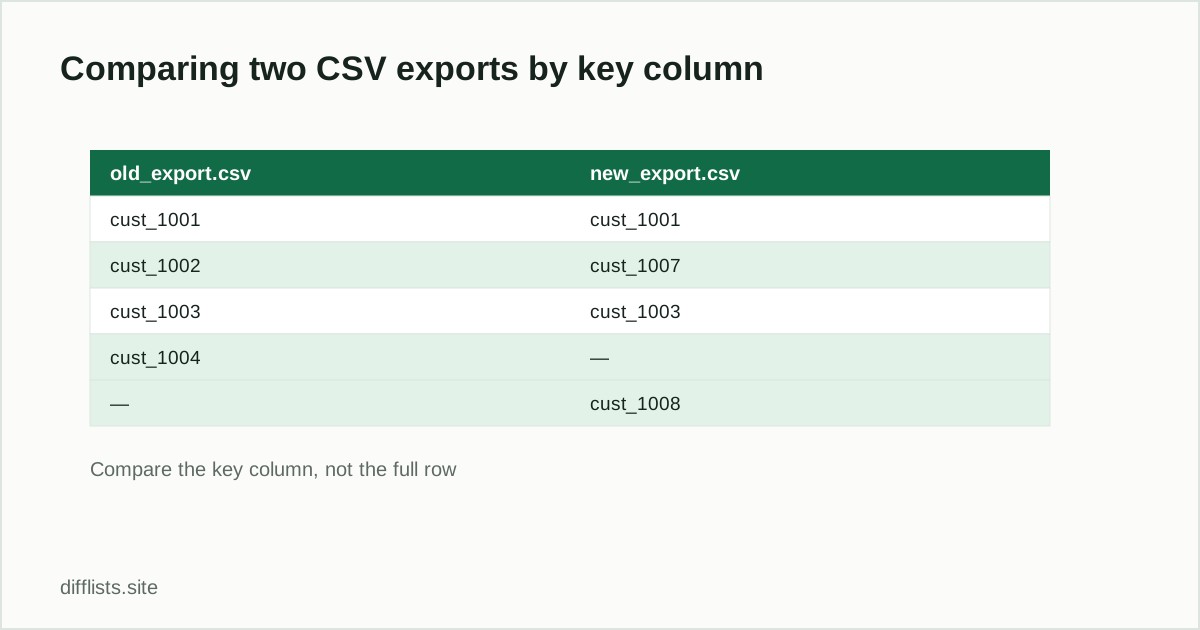
Two CSV exports, each with a customer_id key column:
| old_export.csv | new_export.csv |
|---|---|
| cust_1001 | cust_1001 |
| cust_1002 | cust_1007 |
| cust_1003 | cust_1003 |
| cust_1004 | — |
| — | cust_1008 |
Copy the customer_idcolumn from each file into List 1 and List 2. The intersection (cust_1001, cust_1003) is your confirmed-in-both records. Only in List 1 (cust_1002, cust_1004) are customers missing from the new export — worth checking whether they were intentionally removed or dropped by mistake. Only in List 2 (cust_1007, cust_1008) are new customer IDs that showed up in this export.
When a list comparison is not enough
Use a database join, spreadsheet lookup, or dedicated data-diff system when you need to compare multiple fields within matched rows. List comparison answers whether a key exists; a row-level data diff answers which attributes changed for that key. For the broader workflow, read the data reconciliation guide. If you need to see line-by-line changes in a text or config file rather than key coverage, the text diff tool is the better fit. If your data lives in a spreadsheet instead of a CSV export, see comparing two Excel columns or comparing two lists in Google Sheets.
Ready to compare two CSV columns?
Open the CSV comparerFrequently asked questions
How do I compare two CSV files?
Pick a stable key column (ID, SKU, email), copy it from each file into a comparison tool, and review only-in-file-1, only-in-file-2, and shared results.
Should I compare the whole row or just one column?
Compare a key column when other fields might change between exports. Compare full rows only when every field must match exactly.
What delimiter should I use for CSV comparison?
Comma is standard, but choose semicolon, tab, or pipe if that's what your export uses — or let auto-detection pick it for you.
What's the difference between CSV and TSV?
CSV separates values with commas; TSV uses tabs. Both work the same way for comparison — just select the matching delimiter.
Why do leading zeros in product codes cause problems?
Spreadsheet software sometimes strips leading zeros or converts codes to numbers. Import identifier columns as text and check a few values before comparing.