Free tool
Compare Two CSV Files, Column by Column
Open or paste two CSV exports below to see what’s only in one file, what matches, and the combined set — comma, semicolon, tab, and pipe delimiters all supported.
List 1
Your reference listList 2
The list to reconcileResult
The complete relationship, in one view.
Compare both lists to reveal what stayed, what changed, and the clean master set.
How the CSV comparer works
Open a .csv or .tsv file directly with Open file, or copy a single column from Excel, Google Sheets, or a text editor and paste it into either panel. Set the separator to match your file — comma, semicolon, tab, pipe, or auto-detect — and this tool splits each row into comparable items automatically.
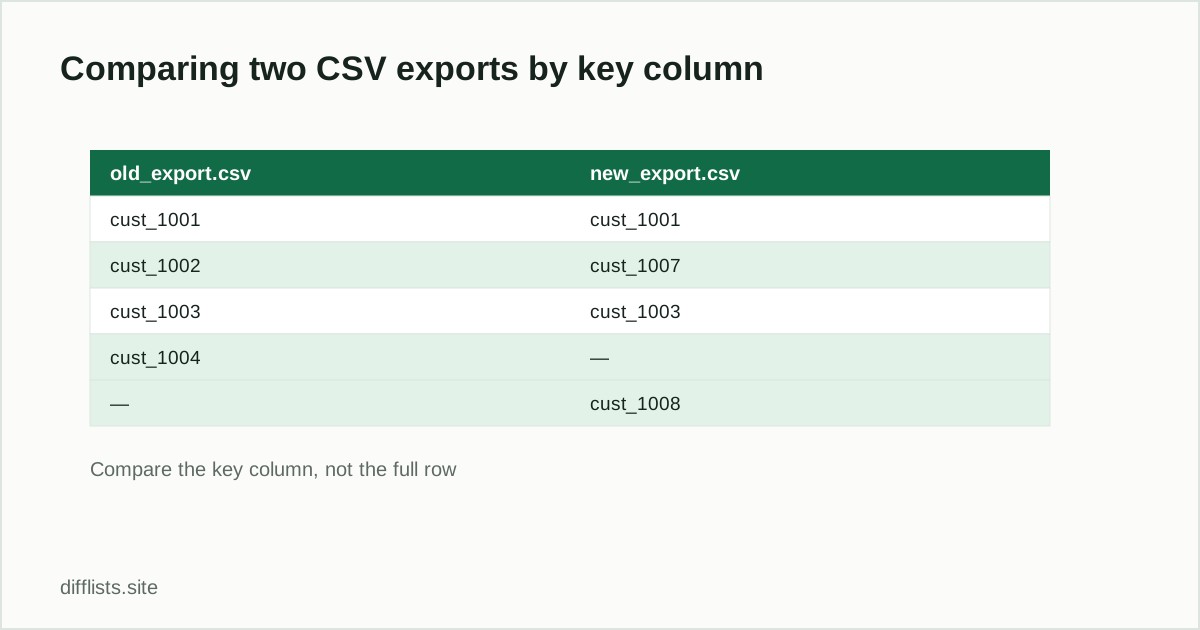
For a multi-column file, compare a single stable key column (customer ID, SKU, email) rather than pasting entire rows: a key-column comparison correctly identifies a record as unchanged even if an unrelated field was edited, where a full-row comparison would flag it as different.
Reading the five results
- Only in List 1 / Only in List 2: records missing from one file.
- Intersection: keys confirmed in both files.
- Union: every distinct key across both files.
- Symmetric difference: the full set of additions and removals.
Related
For the full walkthrough on choosing a comparison key and normalizing CSV inconsistencies, read how to compare two CSV files or columns. If your CSV came from Excel, see comparing two Excel columns.
Common uses for a CSV comparer
- Database export audits: confirm every expected record made it into a nightly export.
- Migration validation: compare a source system’s export against the destination after an import.
- Vendor or supplier file checks: catch missing or unexpected rows before loading a supplier CSV into your system.
- Report reconciliation: compare this week’s report against last week’s to isolate exactly what changed.
- Deduplicating merged CSVs: when two CSV exports get combined, find and review the overlapping rows.
Handling messy CSV exports
Real CSV exports rarely paste in perfectly. Quoted fields containing commas, a trailing blank line, a header row accidentally included in the data, or Windows vs. Unix line endings can all throw off a naive comparison. Preview the first few parsed items after pasting to confirm the separator was detected correctly, strip header rows before comparing, and keep Trim spaces on to absorb stray whitespace from inconsistent exports.
For files with several columns, decide on the comparison key before pasting anything. Copying an entire multi-column export into one panel treats each full row as a single item, which only matches when every column is identical — usually not what you want when you’re trying to answer “did this record survive the export” rather than “is this record byte-for-byte identical.”
CSV comparer vs. command-line diff
Command-line tools like diff compare files line by line, which is perfect when row order matters and you want to see exactly what moved where. A CSV export re-sorted, re-exported from a different query, or missing a few rows in the middle will produce a huge, noisy diffoutput even though the actual data barely changed. This comparer ignores row order entirely and matches by value, so it answers “which records exist in one file but not the other” directly, without wading through unrelated line-position noise. For cases where order genuinely matters — comparing two versions of a script or config file — the text diff tool is the better fit.
Working with large CSV exports
Because the comparison runs directly in your browser tab, there’s no upload step and no file-size limit imposed by a server — the practical ceiling is how much text your browser can comfortably hold in memory, which for plain CSV data is typically hundreds of thousands of rows. For very large files, extracting just the key column before pasting (rather than the full multi-column export) keeps the comparison fast and the result easy to read. Splitting an unusually large export into a few smaller batches before comparing is also a reasonable fallback if the page feels sluggish on an older device.
How do I compare two CSV files online?
Open or paste each CSV into a list panel, choose comma (or the matching delimiter) as the separator, and compare.
Should I compare full rows or one column?
Compare a key column (ID, SKU, email) when other fields might change between exports; compare full rows only when every field must match exactly.
Does this handle TSV files too?
Yes, choose tab as the separator, or use auto-detect.
Is my CSV data uploaded anywhere?
No, files are read and compared locally in your browser tab and never transmitted to a server.
Can I export the differences as a file?
Yes, each result panel has a download button, and Export full report saves every result set plus match-rate stats as one JSON file.
What if my CSV has a header row?
Remove the header row before pasting, or exclude it from the copied range, so it isn't compared as if it were a data value.