Guide · Published September 2026
Alphabetizing a list sounds trivial until you actually need to do it on a list of a few hundred names, SKUs, or file paths. Doing it by hand is slow and error-prone; spreadsheet sort menus work but require opening a program, pasting into a column, and remembering which button does what. A browser-based sort tool skips all of that — paste, sort, copy.
What “alphabetize” actually means
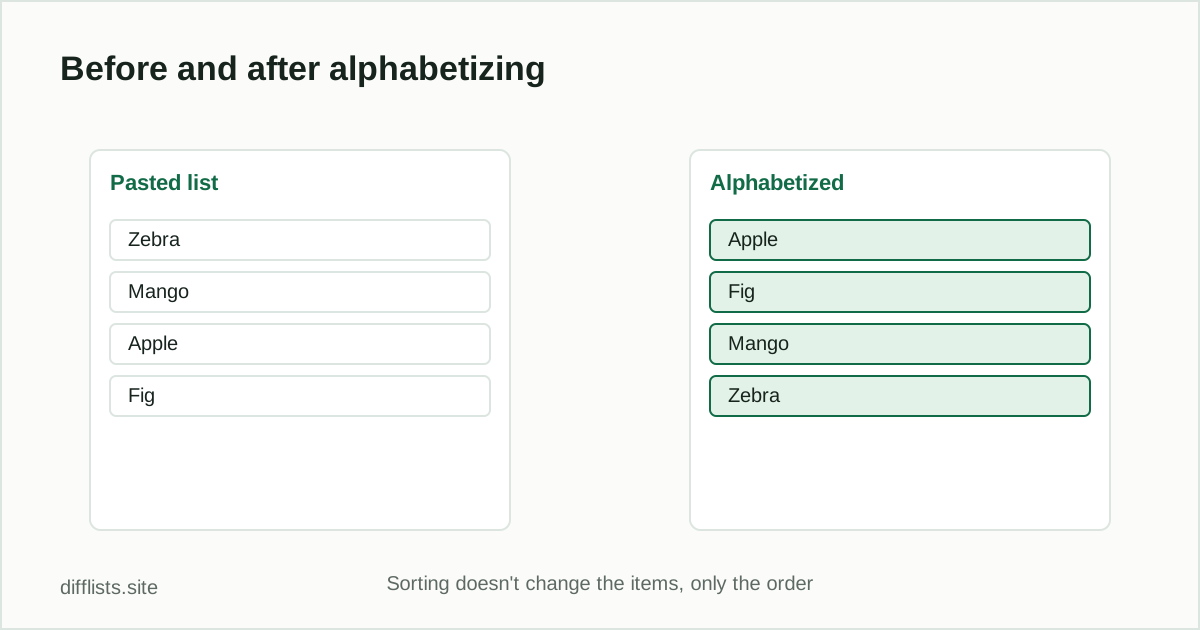
Alphabetizing reorders a list so each item comes before the next according to dictionary order: A before B, B before C, and so on through the alphabet. It says nothing about removing duplicates, changing capitalization, or filtering anything out — it only changes the order items appear in. If your list also has repeated entries or extra whitespace, those problems are still there after sorting; you’ll want to clean duplicates separately.
Plain alphabetical sort vs. natural sort
Most people expect a sorted list of item-1, item-2, item-10to come out in that order. A plain character-by-character sort doesn’t do that — it compares text left to right, so item-10 sorts before item-2because the character “1” comes before “2”. This trips people up constantly with SKUs, invoice numbers, versioned filenames, and zero-padded codes.
Natural sort fixes this by treating a run of digits as one number instead of a sequence of characters, so item-2 correctly comes before item-10, and a zero-padded code like 007stays in the right numeric position rather than sorting as if it were the text string “zero-zero-seven.”
How to alphabetize a list online
- Paste your list into the input box, one item per line (or import a .txt/.csv file).
- Choose ascending (A→Z) or descending (Z→A) order.
- Turn on natural sort if your list has numbered or zero-padded items.
- Decide whether the sort should be case-sensitive — off by default, so “apple” and “Apple” sort next to each other.
- Copy the sorted list or download it as a text file.
Alphabetizing and deduplicating together
If your list has both ordering and duplicate problems, sort first, then run the Clean action — with the list already sorted, duplicate entries end up next to each other, which makes it easy to visually confirm the dedupe worked as expected before you copy the result out. See the duplicates guide for how case sensitivity and whitespace trimming affect what counts as a duplicate.
Common alphabetizing mistakes
- Leading whitespace: a space before an entry pushes it to sort first, ahead of everything else, even though it looks identical to the reader. Trim whitespace before sorting.
- Mixed case without a rule:deciding case sensitivity after sorting instead of before means you may need to re-sort once you notice “apple” and “Apple” landed in different places.
- Punctuation and symbols:a name like “3M” or “#hashtag” sorts based on the character it starts with, not the word you’d expect — numbers and symbols typically sort before letters.
- Treating a numbered list as text: without natural sort, a plain alphabetical pass scrambles numbered items in a way that looks like a bug but is actually the sort working exactly as designed.
Alphabetizing in Excel or Google Sheets instead
Both spreadsheet apps have a built-in sort (Data → Sort A→Z or Z→A). That’s the right choice when the list already lives in a spreadsheet and needs to stay there. A browser-based tool is faster when you just have plain text — a pasted list, an export, or the output from another tool — and don’t want to open a spreadsheet at all. See the Excel comparison guide and Google Sheets comparison guide if you’re also comparing two sorted lists against each other.
When order matters for a comparison
Sorting doesn’t change whether two lists match — set operations like intersection and difference don’t care what order items are in. But a sorted, alphabetized list is much easier for a human to scan and sanity-check before or after running a full comparison. See how to compare two lists online for the full five-result comparison workflow.
Paste your list and sort it in seconds.
Open the alphabetizerFrequently asked questions
How do I alphabetize a list online for free?
Paste your list into a text box, choose the Sort action with A→Z order, and copy or download the result. No signup or software install is required.
Does alphabetizing remove duplicate entries?
Not by itself. Sorting only reorders items — use a separate Clean or dedupe action first if you also want duplicates removed.
How are numbers handled when alphabetizing a list?
Plain alphabetical (lexicographic) sort treats "item-10" as coming before "item-2" because it compares character by character. Natural sort compares the numeric parts as numbers instead, so item-2 correctly comes before item-10.
Can I alphabetize a list that has mixed uppercase and lowercase?
Yes. Case-insensitive sorting treats "Apple" and "apple" as equivalent for ordering purposes. Turn on case sensitivity if uppercase and lowercase need to sort separately.
Will alphabetizing change the actual items in my list?
No. Sorting only changes the order the items are displayed in — the text of each item stays exactly the same.