Guide · Published September 2026
“Side by side” is usually the first thing people try when comparing two lists — open both, put them next to each other, and scan for differences with your eyes. It works for a handful of items. It falls apart past about twenty, because scrolling two lists in sync and catching a single missing entry is genuinely hard for a human to do reliably.
Why manual side-by-side comparison breaks down
The problem isn’t the layout — it’s that your eyes have to track position in two lists simultaneously, and a single insertion or deletion shifts every item below it out of alignment. A row that’s missing from list B pushes everything after it up by one line, and from that point on nothing lines up visually even though most of the remaining items still match. This is exactly what set-based comparison solves: instead of relying on position, it matches items by value, so a missing row in the middle doesn’t throw off anything after it.
A better side-by-side workflow
- Paste List 1 and List 2 into their own panels.
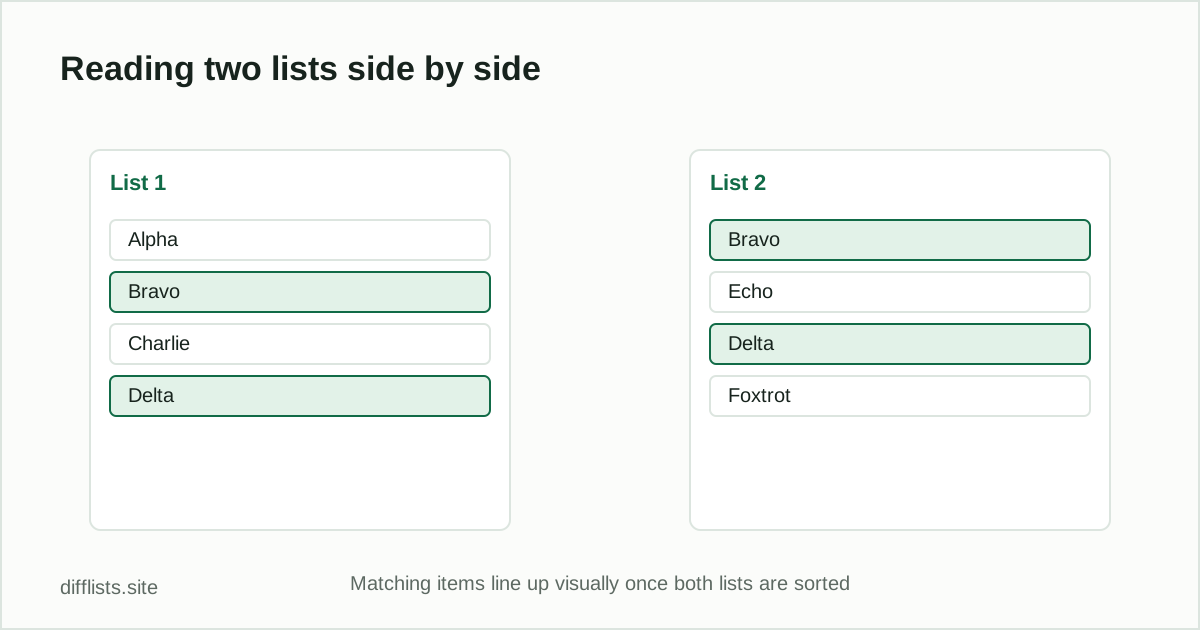
- Sort both lists (alphabetically or naturally) so equivalent items land near each other visually.
- Compare, and read the highlighted differences alongside the full lists.
- Use the intersection result to confirm which items truly match, rather than relying on eyeballing position.
This gives you the visual side-by-side view you started with, plus a value-based difference check underneath it that doesn’t depend on the two lists staying in sync.
When you actually want position, not value
Sometimes position genuinely matters — checking that a CSV export preserved row order, or that a config file’s keys weren’t reordered during a deploy. In those cases, a value-based comparison alone won’t tell you the whole story, because it intentionally ignores order. A text-diff tool that tracks line position (rather than treating each line as a set member) is the right choice there instead.
Formatting tips for a cleaner side-by-side view
- Strip headers and footers first. A column header pasted in as if it were a list item throws off both the visual alignment and any sort you apply afterward.
- Keep one item per line. If your source data is comma- or tab-separated, split it into one value per line before comparing rather than pasting a single long delimited row.
- Match the normalization on both sides.If you trim whitespace or ignore case on one list, apply the same rule to the other — inconsistent normalization is a common source of items that look identical but don’t register as matches.
- Read the counts, not just the highlights.The item-count badges on each panel are a fast sanity check that you pasted the whole list and didn’t accidentally truncate it.
Combining two lists into one side-by-side view
If your goal is a merged reference — one list showing List 1’s value next to List 2’s value on the same row — that’s a join, not a comparison. A common approach: export the intersection (shared keys) from a comparison tool first, then use that as the join key in a spreadsheet VLOOKUP or INDEX/MATCH to pull the second value alongside the first.
Common side-by-side use cases
- Reviewing a proposed change: old config vs new config, read together before approving.
- Spot-checking an export: confirm a spreadsheet column matches a source list before trusting it. See the Excel column comparison guide for a spreadsheet-specific walkthrough.
- Teaching or documentation: showing two versions of a list next to each other to explain what changed.
- Manual QA: a quick visual pass before running a full automated comparison.
Make differences easier to spot
Beyond sorting, keep the matching rules explicit: decide up front whether case and whitespace should count as differences, and apply the same rule to both lists. See union vs intersection vs difference for what each comparison result actually represents, and how to compare two lists online for the full step-by-step workflow.
View your two lists side by side, with differences highlighted.
Open the toolFrequently asked questions
What does comparing two lists side by side mean?
It means viewing both full lists at the same time, usually in two columns, with matching or differing items visually marked instead of manually cross-referencing them.
Is a side-by-side view the same as a difference report?
A side-by-side view is for visual scanning; a difference report (only-in-A, only-in-B, intersection) is the same information organized as discrete result sets you can copy or export.
Can I paste two spreadsheet columns for a side-by-side comparison?
Yes. Copy each column directly from Excel or Google Sheets into List 1 and List 2 — no need to save as a file first.
How do I make a side-by-side comparison easier to scan?
Sort both lists alphabetically or naturally first. Matching items line up close together once both lists are in the same order, making differences easier to spot visually.