Guide · Published September 2026
Word has a genuinely good document comparison feature built in, and most people never find it because it sits behind the Review tab rather than anywhere near Open or Save. Once you know where it is, comparing two drafts takes about fifteen seconds.
Word’s built-in Compare
Full steps are in Microsoft’s own Compare and merge documentation; the short version:
- Open Word (any document, or none).
- Go to the Review tab.
- Click Compare → Compare…
- Choose the Original document and the Revised document.
- Click OK.
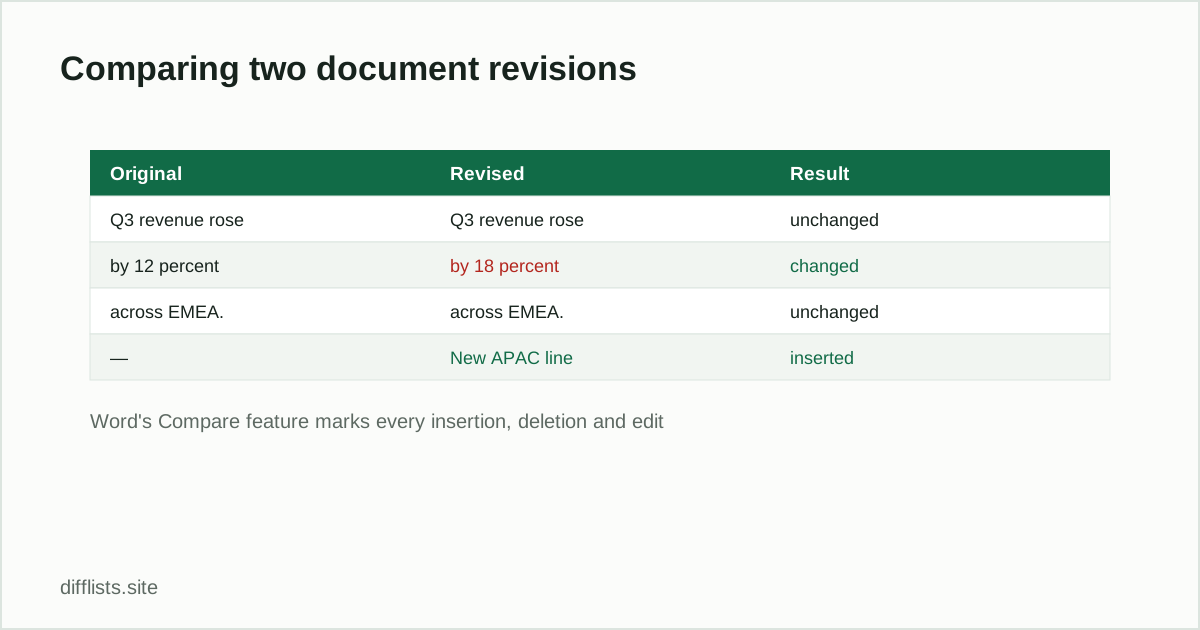
Word opens a new document — it does not modify either source file — showing every difference as a tracked change. Insertions are underlined, deletions struck through, and a revisions pane lists each change so you can walk through them one at a time and accept or reject individually.
Turning down the noise
Click More in the Compare dialog before running it, and you get a list of what to compare: formatting, case changes, white space, tables, headers and footers, comments, and so on. On a heavily reformatted document, leaving Formatting ticked buries the actual content edits under a mountain of style changes. Untick it and the result shows only what the text actually says differently.
The same dialog controls whether changes are attributed to the original author or marked as a new reviewer, and whether the result goes into a new document or overwrites one of the originals. The default — new document — is the safe choice.
Compare vs. Combine
The Compare menu has a second entry, Combine, and they answer different questions. Compareasks “what is different between these two versions?” Combineasks “how do I merge revisions from several reviewers into one document?” and preserves who made which change. If three people each edited their own copy of the same draft, Combine is the one you want, run repeatedly to fold each reviewer in.
Without Word
Google Docs has an equivalent under Tools → Compare documents, which produces the same kind of marked-up output for two Docs files.
If neither is available, or you only care about the wording rather than formatting and tracked-change metadata, the low-tech route works fine: select all the text in each document, paste each into a plain text diff tool, and compare. You lose formatting awareness and the accept/reject workflow, but you get a clean line-by-line view of what the text actually says differently — and it works on any machine with a browser. See comparing two text files online for how to read that output.
A note on pasting document text
Text copied out of Word frequently carries non-breaking spaces, smart quotes, and occasionally zero-width characters that Word inserted for layout. In a plain text diff those can make two visually identical lines register as different. If a diff of pasted document text looks inexplicably noisy, check it with the invisible character detector before assuming the text really changed.
When the documents are really lists
Sometimes what you are comparing is not prose but a list that happens to live in a Word file — a roster, an inventory, a set of references. In that case order is usually irrelevant and a tracked-changes view is the wrong shape of answer. Paste the items into the list comparison tool instead and read the differences, intersection and union directly.
Only need the text differences?
Open the text diff toolFrequently asked questions
How do I compare two Word documents?
In Word, go to Review → Compare → Compare…, select the original and revised documents, and click OK. Word generates a third document with every difference marked as a tracked change.
What's the difference between Compare and Combine in Word?
Compare shows the differences between two documents as tracked changes. Combine merges revisions from multiple authors into a single document, keeping each author's changes attributed separately.
Does comparing two documents change the originals?
No. Word writes the result into a new document by default and leaves both source files untouched.
Can I compare Word documents without Microsoft Word?
Not with Word's own feature. Google Docs offers a similar Compare documents option under Tools, or you can copy the text out of both files and run a plain text diff.
Why does the comparison show formatting changes I don't care about?
In the Compare dialog, expand More and untick Formatting under "Comparison settings" so the result shows only content differences.